How to Split a PDF Online Free (Pages, Ranges, & Bookmarks)
Split a PDF into pages, page ranges, or individual files. Free, browser-based, no upload. Works on Mac, Windows, iPhone, and Android.
May 21, 2026 · 5 min read · PDF Tools
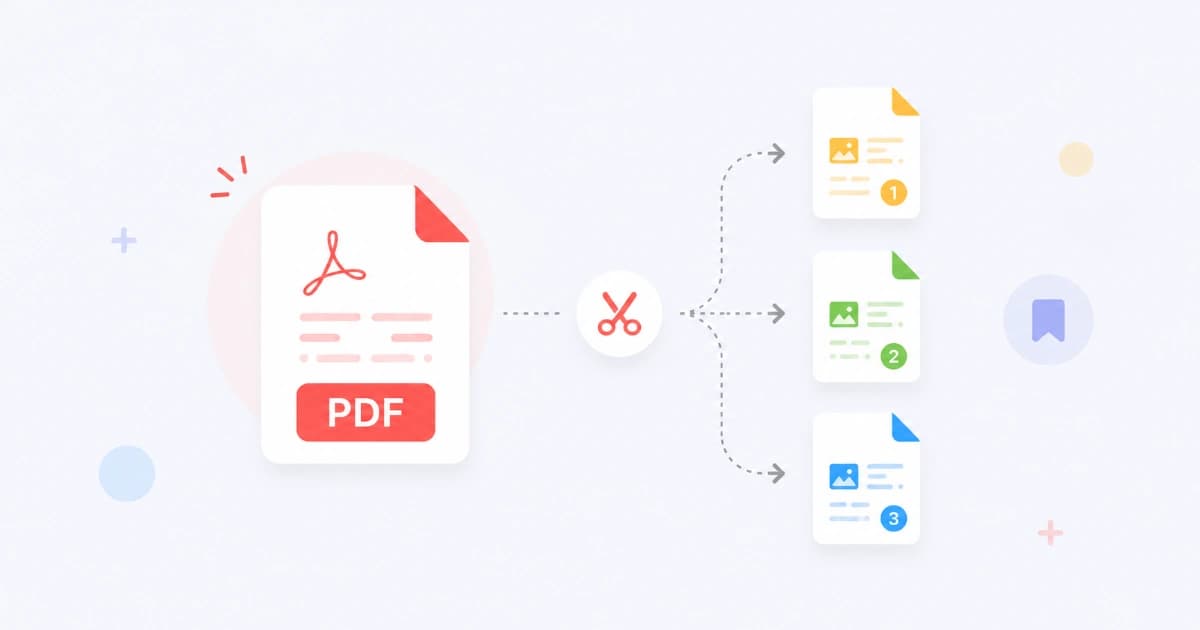
The opposite of merging - sometimes you want to pull pages out of a PDF. A signed page from a contract, chapter 3 of a textbook, only the invoice from a multi-page receipt. With Split PDF you can split any PDF in your browser - no upload, no signup, no quality loss. This guide covers every common scenario.
Quick start (60 seconds)
- Open Split PDF.
- Drag your PDF onto the page.
- Pick a split mode:
- Page ranges - e.g.
1-5, 8, 12-15produces three PDFs. - Every page - produces one PDF per page.
- Every N pages - e.g. split every 10 pages.
- Page ranges - e.g.
- Click Split.
- Download each part (or download a ZIP of all of them).
That's the whole workflow. The split happens locally - your PDF never reaches our servers.
The three split modes explained
1. By page ranges (most common)
Enter ranges separated by commas:
1-5, 8, 12-15
That produces three PDFs:
- Part 1: pages 1, 2, 3, 4, 5
- Part 2: page 8
- Part 3: pages 12, 13, 14, 15
Use this when you want specific sections - chapters, signed pages, an attachment buried in a long document.
2. Every page (one PDF per page)
Useful when you need each page as a separate file. Examples:
- Splitting a multi-page scan into individual receipts.
- Preparing slides for a per-slide review.
- Extracting individual certificate pages.
The output is a ZIP with page-1.pdf, page-2.pdf, … and so on.
3. Every N pages (uniform split)
Split into evenly-sized chunks:
- Every 10 pages → useful for long reports.
- Every 25 pages → typical for breaking up a textbook.
The last chunk may be smaller if the page count isn't a perfect multiple.
Common scenarios
Extract a signed page from a contract
You signed a 20-page contract, but only need page 7 (the signature page) for the records team.
- Open Split PDF.
- Upload the contract.
- Page range:
7. - Split → download
signed-page.pdf.
Total: ~15 seconds.
Send only the relevant invoice from a statement
Your bank statement has 6 pages - only page 3 has the invoice you need to forward.
- Upload the statement to Split PDF.
- Page range:
3. - Download → send.
Bonus: cleaner than sending the whole statement, and removes pages with unrelated transactions.
Break up a textbook by chapter
You have a 280-page textbook PDF. The chapter list shows pages 1-22 (Ch.1), 23-55 (Ch.2), 56-90 (Ch.3)…
- Upload to Split PDF.
- Ranges:
1-22, 23-55, 56-90, ... - Split → download all chapters.
- Optionally rename with Bulk File Rename to
chapter-01.pdfstyle.
Prepare invoices for accounting
You receive a single PDF per month with 12 vendor invoices stacked together. Your accounting tool wants one PDF per invoice.
- Upload to Split PDF.
- Each invoice is exactly 1 page → use Every page.
- Download ZIP → upload to accounting system.
If invoices are multi-page, use Every N pages with N = the invoice page count, or enter ranges manually.
Split a big PDF for email
A 60 MB report won't fit in Gmail's 25 MB limit. Splitting can help:
- Upload to Split PDF.
- Split into halves:
1-50, 51-100. - Compress each with Compress PDF if still too large.
- Send as two emails.
See: How to compress PDF for email.
Tips and gotchas
Page count from the cover
If the PDF has a cover page that doesn't appear in the table of contents, all your page numbers shift by 1. Look at the page indicator in Preview / Acrobat (not the printed page number) to find the correct splits.
Bookmarks aren't preserved
Most online splitters drop bookmarks (outline). For most use cases this is fine. If you need bookmarks intact, use a desktop tool like Acrobat.
Watermarks and headers
Each split PDF inherits whatever headers, footers, and watermarks were on the source. To remove a watermark, you'll need a dedicated PDF editor - that's beyond split's scope.
Encrypted / password-protected PDFs
If your PDF is password-protected, decrypt it first (in Acrobat or Preview), then split. We don't attempt to crack passwords.
After splitting
A few post-split workflows that pair well:
- Merge selected parts with Merge PDF to reassemble in a new order.
- Compress the smaller parts with Compress PDF for email.
- Bulk rename the output with Bulk File Rename if you split into many files.
On mobile
Split PDF works in mobile Safari and Chrome:
- iPhone: open the page, tap Add files → select from Files or iCloud Drive. Enter ranges with the keypad. Tap Split → save each PDF to Files.
- Android: open in Chrome, upload from Files / Drive, enter ranges, split, download to your phone.
Phones with <3 GB RAM may slow down on very large PDFs (>200 MB). Use desktop for those.
Comparison: ways to split a PDF
| Method | Speed | Privacy | Cost | Notes |
|---|---|---|---|---|
| Convert Freely Split PDF (browser) | Fast, local | Strong | Free | Recommended for most users |
| macOS Preview | Fast | Strong | Free | Drag pages out individually |
| Adobe Acrobat | Fast | Depends on cloud | Paid | Best for bookmark-aware splits |
| Microsoft Word | Slow | Local | Free if you have Word | Not designed for PDFs |
| Random online splitter | Varies | Risky | Free with ads | Avoid for sensitive docs |
Conclusion
Splitting a PDF is a one-minute job - drop, range, split, done. Split PDF is the fastest free option for everyday needs, and your file never leaves your browser. Pair it with Merge PDF and Compress PDF for a complete PDF workflow. Explore the full PDF Tools hub for more.
Frequently asked questions
- How do I extract a single page from a PDF?
- Open Split PDF, upload your PDF, enter the page number (e.g. '5') as a single-page range, and click Split. You'll get a one-page PDF containing only page 5.
- Can I split a PDF by chapters or bookmarks?
- Standard online splitters work with page numbers and ranges, not bookmarks. To split by chapter, note each chapter's start page from the table of contents and enter the ranges manually.
- Will splitting a PDF lose quality?
- No. Splitting copies the existing pages exactly - same fonts, same images, same form fields. The split parts are identical in quality to the source, just shorter.
- Is online PDF splitting secure for confidential documents?
- Only if the splitter runs in your browser. Convert Freely's Split PDF processes files locally - your PDF never leaves your device. Avoid splitters that don't explicitly state this for contracts, medical, or financial documents.
- How many PDFs can I create from one source?
- Practically unlimited. Splitting a 200-page PDF into 200 single-page PDFs in one go works fine in the browser. Very large files may slow down older devices.