Convert Images to PDF: Step-by-Step Guide (2026)
Turn JPG, PNG, HEIC, or WEBP images into a single PDF. Set page size, orientation, and margins. Free, browser-based, no signup.
May 13, 2026 · 6 min read · PDF Tools
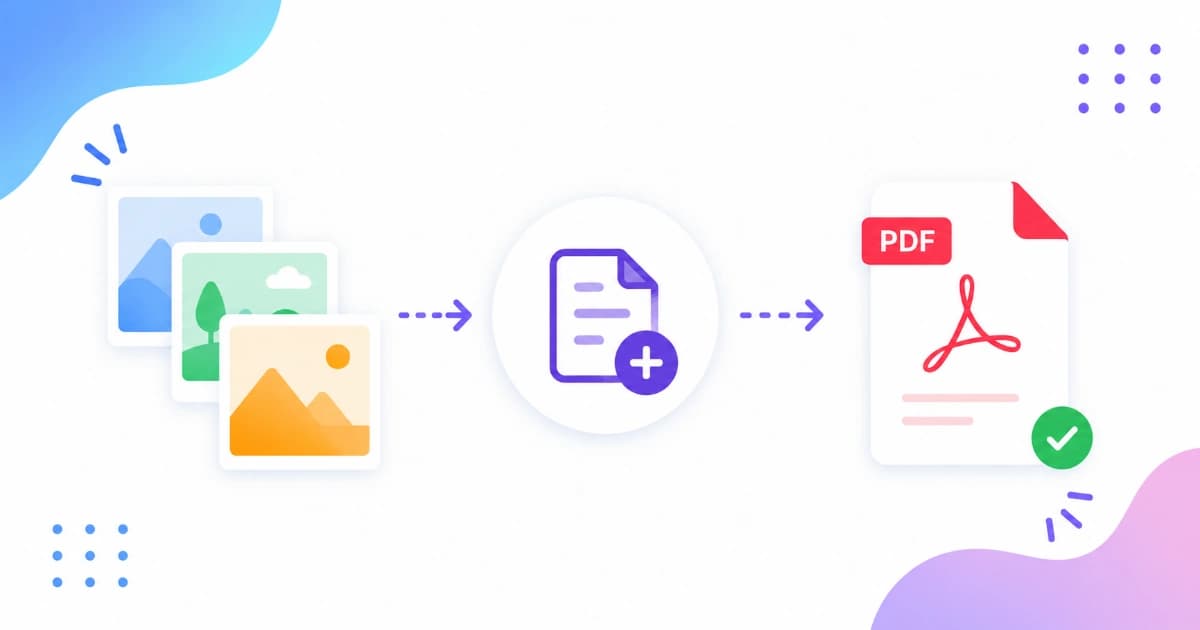
Turning a handful of phone photos into a single PDF is a daily task in modern offices - receipts, signed contracts, ID scans, kid's school worksheets. With Image to PDF you can do it in your browser in under a minute. This guide walks through the exact steps, page-size choices, and the most useful related tools.
The quick version
- Open Image to PDF.
- Drop your images in.
- Set page size, orientation, and margins.
- Drag tiles to reorder.
- Click Convert and download your PDF.
That's the whole thing. The rest of this guide is about the choices you'll make along the way.
Supported image formats
| Format | Supported | Notes |
|---|---|---|
| JPG / JPEG | Yes | Most common phone photos |
| PNG | Yes | Lossless; good for screenshots |
| WEBP | Yes | Modern web format |
| GIF (static) | Yes | First frame only |
| HEIC | Convert to JPG first | Use HEIC to JPG |
| TIFF | Convert first | Use Image Converter |
| BMP | Yes | Rare these days |
For iPhone photos that arrive as HEIC, do a quick HEIC to JPG first.
Step 1 - Add and reorder images
Drag your files into the drop zone. They appear as tiles. Drag tiles to set the page order. The order top-to-bottom (or left-to-right on mobile) is the order they'll appear in the PDF.
Tips:
- Name your source files numerically (
01-front.jpg,02-back.jpg) so they sort automatically. - Remove a tile by clicking the X icon.
- Re-add an image at a specific position by dropping it onto an existing tile.
Step 2 - Pick page size
| Page size | Dimensions | Where it's standard |
|---|---|---|
| A4 | 210 × 297 mm | Most of the world (Europe, Asia, India, Australia) |
| US Letter | 8.5 × 11 in | United States, Canada |
| Legal | 8.5 × 14 in | US legal documents |
| A5 | 148 × 210 mm | Small handbooks, notebooks |
If you're not sure, pick A4 - it's the most widely accepted format in international submissions, university applications, and visa workflows.
Step 3 - Orientation
- Portrait - taller than wide. Default for documents.
- Landscape - wider than tall. Better for whiteboard photos, screenshots of dashboards, panoramic scans.
You can mix both by running the tool twice (one portrait, one landscape) and then using Merge PDF to combine.
Step 4 - Margins and fit
| Setting | What it does |
|---|---|
| Fit (recommended) | Scales the image to fit the page with small margins |
| Fill | Image covers the whole page, edges may crop |
| Original size | No scaling; image floats on a larger page |
Use Fit for receipts, IDs, and most documents. Use Fill when the image is already cropped to the exact aspect ratio of the page.
Step 5 - Convert and download
Click Convert. The browser builds the PDF locally - no upload - and offers a download. Default filename is images-merged.pdf. Rename to something descriptive (expense-report-2026-05.pdf) before sharing.
Useful workflows
Receipts → expense report PDF
- Photograph each receipt with your phone camera.
- Transfer photos to your computer (AirDrop, Google Photos, USB).
- Convert any HEIC files with HEIC to JPG.
- Drop everything into Image to PDF → A4 portrait, fit.
- Submit one PDF instead of 12 attachments.
School worksheets → one homework PDF
- Scan or photograph each completed worksheet.
- Use Image Cropper to trim edges.
- Build the PDF with Image to PDF.
- Email or upload to the school portal.
ID front + back → one PDF
Most KYC forms ask for one PDF with front and back.
- Photograph the front and back of your ID.
- Crop both to remove background.
- Run through Image to PDF - A4 portrait, fit.
- Submit. Done.
Optimise the final PDF
Image-based PDFs are usually large because each page contains a JPG or PNG.
- Compress images first with Image Compressor at quality 80 - typically 40-70% smaller.
- Compress the final PDF with Compress PDF at Medium - another 30-50% on top.
A 20-photo PDF that starts at 60 MB usually ends at 5-8 MB after this pipeline.
Merging into a bigger document
If you already have an existing PDF (a cover letter, an application form) and need to add image-based pages:
- Convert the images to PDF with Image to PDF.
- Merge the two PDFs with Merge PDF.
See: How to merge PDFs free.
Mobile
Image to PDF works in mobile Safari and Chrome:
- Tap the drop zone → select photos from your camera roll.
- Drag tiles to reorder (long-press on iOS).
- Tap Convert → save the PDF to Files / Downloads.
For multi-page scanned documents on the phone, this is faster than any dedicated app - no install, no signup.
Common questions briefly
- Can I add text or annotations to the PDF? Not in this tool. Use a PDF annotator after conversion if needed.
- Will the PDF be searchable? Only if the image text is OCR'd. Standard image-to-PDF just embeds the picture, no OCR.
- Can I add a password to the PDF? Use a dedicated PDF tool after conversion. We don't add passwords during conversion.
Conclusion
When you need a single PDF from many images, Image to PDF is the fastest free way to do it without uploading personal documents. Pair it with HEIC to JPG, Image Compressor, and Compress PDF to handle the whole pipeline in your browser. Browse all PDF Tools for more.
Frequently asked questions
- Can I make a single PDF from many photos?
- Yes. Drop all your images into the Image to PDF tool. Each image becomes one page. Drag the tiles to set the order, then click Convert.
- What page size should I pick?
- A4 (210×297 mm) for most of the world, US Letter (8.5×11 in) in North America. For receipt scans and ID photos, pick A4 - it fits inside almost every document workflow.
- Can I scan documents with my phone and convert to PDF?
- Yes. Take photos with your phone camera, transfer to your computer (or open Image to PDF in mobile Safari/Chrome), and combine. For multi-page receipts, crop each image first with our Image Cropper tool.
- Does Image to PDF support HEIC from iPhone?
- Convert your HEIC to JPG first using HEIC to JPG, then add the JPGs to Image to PDF. We'll add direct HEIC support in a future update.
- How do I reduce the size of the final PDF?
- Compress the images before converting (Image Compressor at quality 80), and/or run the final PDF through Compress PDF. A 20-photo PDF can usually be brought under 10 MB this way.