How to Compress PDF for Email (Gmail, Outlook & More)
Reduce PDF size for Gmail's 25 MB and Outlook's 20 MB limits. Free compress PDF tool, three quality presets, no upload to a third-party server.
May 17, 2026 · 5 min read · PDF Tools
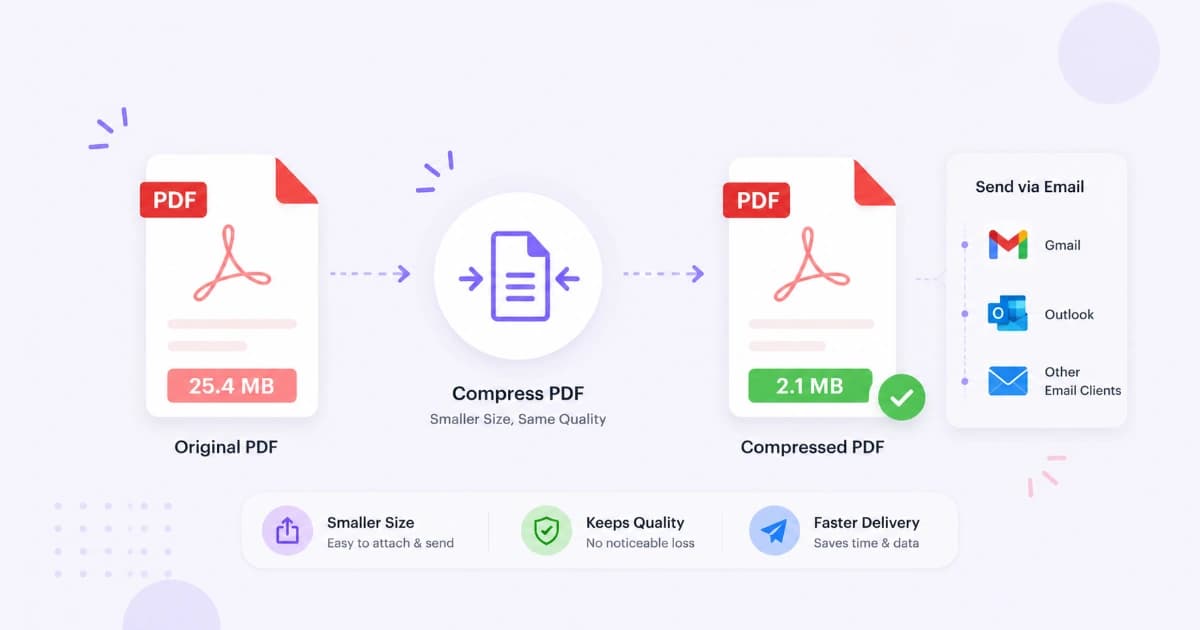
The "attachment too large" wall is one of the most frustrating moments in office work. The fix is almost always compressing your PDF, and you can do it in your browser in under a minute. This guide walks through the exact limits for Gmail, Outlook, and major mail providers, and how to get under them with Compress PDF.
Email attachment size limits (2026)
| Provider | Default limit | Notes |
|---|---|---|
| Gmail | 25 MB | Larger files auto-attach as Google Drive links |
| Outlook.com | 20 MB | 33 MB at the server, but client often refuses |
| Microsoft 365 (work/school) | 10-35 MB | Set by IT admin; typically 25 MB |
| Apple iCloud Mail | 20 MB | Mail Drop lets you share up to 5 GB |
| Yahoo Mail | 25 MB | Larger via OneDrive |
| ProtonMail | 25 MB total per message | Includes all attachments combined |
| Most ISPs | 10-20 MB | Smaller than webmail |
Practical target: under 10 MB. That number passes virtually every provider, sails through corporate filters, and downloads fast on mobile.
Compress a PDF in 4 steps
- Open Compress PDF.
- Drop your file (or click to upload - it stays in your browser).
- Pick a compression preset:
- Low - best quality, ~20-40% size reduction.
- Medium - recommended default, ~50-70% reduction.
- High - aggressive, ~70-90% reduction. Images get downsampled.
- Download the compressed file and attach to your email.
For most office documents, Medium delivers an under-10 MB file without any visible change in quality.
What if compression isn't enough?
Some PDFs are just too big for a single email. Three reliable workarounds:
1. Split the PDF
For a 60 MB contract, split it into chapters and send them as separate emails.
- Open Split PDF.
- Upload and pick page ranges (e.g. 1-20, 21-40, 41-60).
- Download each part separately.
See: How to split a PDF online.
2. Remove unused pages first
Big PDFs often have appendices, blank pages, or scanned cover sheets you don't need to send.
- Open Split PDF.
- Select only the pages you actually want.
- Save as a new file.
- Compress that smaller file.
3. Use a cloud share link
Gmail, Outlook, and iCloud all let you share large files via Drive / OneDrive / Mail Drop. Click the attach button - if the file is too large, you'll be offered a link option automatically.
This is the safest option for files over 50 MB.
How much will it shrink?
Real-world examples from typical workflows:
| Original PDF | Type | Compressed (Medium) |
|---|---|---|
| 4 MB | Contract with embedded fonts | ~2.5 MB |
| 18 MB | Scanned signed agreement (10 pages) | ~5 MB |
| 35 MB | Slide deck exported from PowerPoint | ~9 MB |
| 80 MB | High-res scan of a 50-page document | ~14 MB |
| 12 MB | Report with charts (vector) | ~7 MB |
Vector content (text, charts from Excel/PowerPoint) compresses less than scans. Raster scans (images of pages) shrink the most because most of their weight is in the image data.
Common reasons a PDF won't shrink
- Already compressed once. Re-compressing a slim PDF often gives single-digit savings.
- Password-protected. Remove the password first, compress, then re-add it.
- Heavy form fields. Forms with many embedded scripts don't shrink much. Flatten the form first.
- Vector-only document. A text-only PDF is usually under 1 MB already - there's nothing to compress.
Preserve readability
Heavy compression can soften small text and blur tiny details. Before sending sensitive documents:
- Preview the compressed file at 100% zoom.
- For contracts and legal docs, prefer Low or Medium.
- For internal drafts and meeting notes, High is fine.
If text becomes unreadable, drop one level of compression and re-export.
Compress PDF on mobile
iOS and Android browsers both work with Compress PDF:
- iOS Safari: open the page, tap the share sheet, "Save to Files" → upload, compress, "Save to Files" again. Attach from Files in Mail.
- Android Chrome: open the page, upload from Drive or Files, download the compressed file, attach in Gmail.
Phones with less RAM struggle with very large PDFs (>100 MB). For those, use the desktop version.
Combine multiple PDFs before compressing
If you're sending several related PDFs, merge first, then compress. One email with one attachment is friendlier than three separate emails.
- Use Merge PDF to combine all files.
- Use Compress PDF on the merged file.
See: How to merge PDF files online for free.
Alternatives to email attachments
If you regularly hit size limits, attachments may be the wrong tool:
- Google Drive / OneDrive / iCloud links - accept large files, give the recipient a download link.
- WeTransfer / SendAnywhere - best for one-off transfers, no account needed.
- Slack / Teams uploads - better for ongoing collaboration.
- A shared folder - for repeat exchanges with the same person.
Email attachments are best for files under 10 MB.
Conclusion
Big PDF? Run it through Compress PDF at Medium, attach, done. For anything over 50 MB, split with Split PDF or share via Drive. Browse the full PDF Tools category for more.
Frequently asked questions
- What is Gmail's PDF attachment size limit?
- Gmail allows attachments up to 25 MB per message. If your file is larger, Gmail offers to upload it to Google Drive and share a link. To send as a direct attachment, the PDF needs to be 25 MB or less.
- Why is my PDF so large?
- Three usual suspects: 1) high-resolution scanned pages (often 200+ MB), 2) embedded large images or screenshots, 3) embedded fonts and form metadata. Compressing first usually fixes #1 and #2.
- Does compressing a PDF lose quality?
- It depends on the level. 'Low compression' keeps text crisp and only re-encodes images at a high quality - usually invisible. 'High compression' downsamples images and may blur small text. Always preview important PDFs before sending.
- Is online PDF compression safe for confidential documents?
- Only if the tool processes files locally. Convert Freely's Compress PDF runs entirely in your browser - your file never reaches our servers. Many other online tools upload to a remote server, which is risky for legal, medical, or financial PDFs.
- Can I compress a PDF without losing OCR / searchability?
- Yes. Compression touches images, not the text layer. Searchable text and any existing OCR remain. If your PDF is a flat scan with no OCR, compression will shrink it but won't make it searchable.