How to Merge PDF Files Online Free (Step-by-Step)
Combine multiple PDFs into one file free, in your browser. Drag to reorder, no upload, no signup. Works on Mac, Windows, iPhone, Android.
May 25, 2026 · 4 min read · PDF Tools
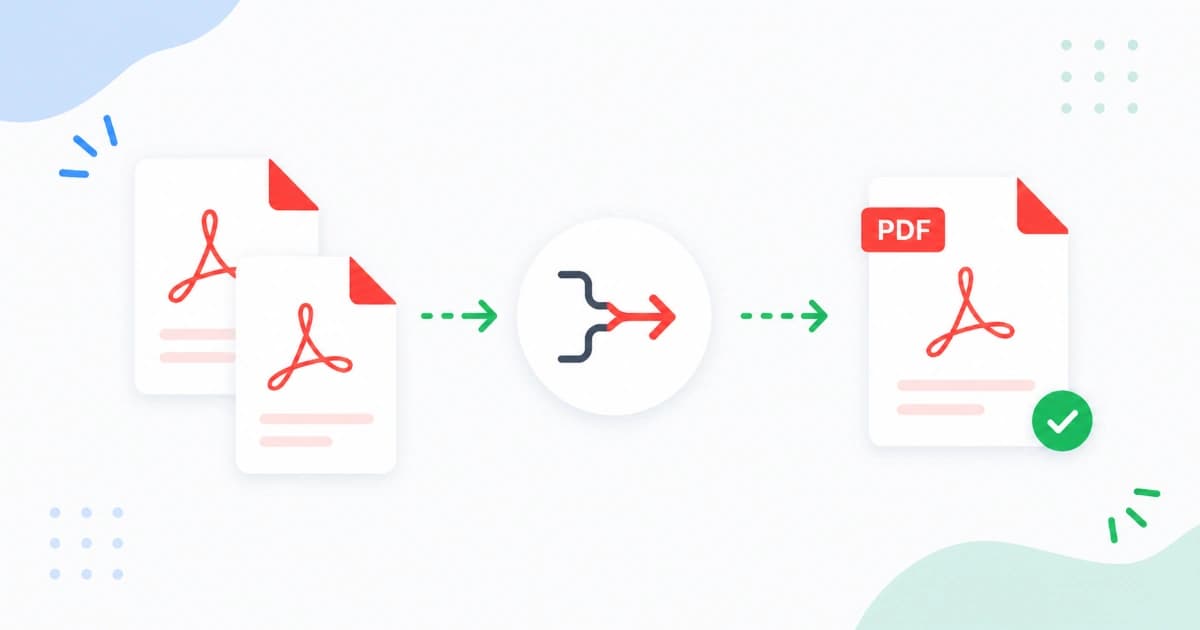
Combining PDFs is one of those tasks that's annoyingly common - submitting a single PDF for school applications, sending a bundled invoice to a client, archiving a year of bank statements. The good news: you can merge PDFs free in under a minute with Merge PDF, with zero signup and zero upload.
Merge PDFs in 4 steps
- Open Merge PDF.
- Drag your PDFs onto the drop zone - or click to browse and select multiple.
- Drag the file tiles to set the order (top = first page).
- Click Merge and download the combined file.
Everything happens in your browser. Files are never uploaded, so confidential documents stay confidential.
Common merge scenarios
1. Bundle invoices for a client
You've sent 3-6 invoices across the month. Your accounts team wants them as one PDF for the audit trail.
- Open Merge PDF.
- Add the invoice PDFs in chronological order.
- Merge → save as
Invoices-2026-Q2.pdf.
2. Combine scanned pages from multiple devices
You scanned page 1 on your phone, pages 2-5 with a desktop scanner.
- Add the phone scan (1 page) first.
- Add the desktop scan (4 pages) second.
- Merge → one continuous 5-page document.
3. Submit a single PDF for an application
Universities and some visa applications require one PDF with passport, transcript, CV, and recommendations.
- Convert non-PDF files first (Image to PDF for photos).
- Order them as the application asks.
- Use Merge PDF → one file → upload.
4. Create a yearly digital archive
End of year - combine 12 monthly bank statements into one Statements-2026.pdf.
- Drop all 12 PDFs.
- Sort by file name (or drag manually).
- Merge → archive.
Reorder pages before merging
Sometimes you don't want every page from every source. For surgical merges:
- Use Split PDF on each source first - extract only the pages you want.
- Then Merge PDF the extracted parts in the right order.
This gives you full control over the final document.
Merge then compress
Big merges produce big files. After merging, drop the output into Compress PDF to bring it under email limits.
A common pipeline:
- Merge 8 statements (52 MB total).
- Compress at Medium → ~12 MB.
- Email with no size warnings.
See: How to compress PDF for email.
Mobile (iOS and Android)
You don't need a separate app:
- iPhone: open Merge PDF in Safari. Tap Add files → select from Files or iCloud Drive. Drag to reorder using the touch handles. Tap Merge → "Save to Files".
- Android: open in Chrome. Tap Add files → select from Files / Drive. Drag tiles to reorder. Tap Merge → download to your Downloads folder or share directly to Gmail.
If your phone has less than 3 GB RAM, large merges (>50 MB) may slow down. Use a laptop for those.
Merging password-protected PDFs
If any source PDF is encrypted:
- Open it in the original app (e.g. Acrobat, Preview).
- Save a copy without the password.
- Merge the unencrypted copy.
- Optionally re-encrypt the merged file.
We don't decrypt password-protected PDFs by design - that would be a security risk.
Keep bookmarks and page numbers
Most basic mergers (including ours) keep the content of each PDF intact, but may not preserve:
- Bookmarks / outlines (table of contents)
- Internal links (jumps between pages)
- Page numbers (each source keeps its own)
For most office work, this is fine. For long-form publishing (a book, a thesis), use a desktop tool like Acrobat or Affinity Publisher.
Compared to other approaches
| Method | Speed | Privacy | Cost | Best for |
|---|---|---|---|---|
| Convert Freely Merge PDF (browser) | Fast, local | Strong | Free | Most users |
| macOS Preview | Fast | Strong | Free | Mac users with small batches |
| Adobe Acrobat | Fast | Depends on cloud setting | Paid | Power users |
| Microsoft Word | Slow, ugly | Depends | Free if you have Word | Light use only |
| Random online merger | Varies | Risky if uploads happen | Free with ads | Avoid for sensitive docs |
Conclusion
If you've got two or more PDFs that need to be one, Merge PDF is the fastest free way to do it without signing up or installing anything. Pair it with Split PDF and Compress PDF and you've got 90% of office PDF needs covered. Explore the full PDF Tools hub for more.
Frequently asked questions
- Is online PDF merging safe?
- It depends on whether the tool uploads your files. Convert Freely's Merge PDF runs entirely in your browser - files never reach a server. That's the safe option for contracts, financial documents, and anything confidential.
- Is there a limit on how many PDFs I can merge?
- Practically, no. We've tested merges of 50+ files and several hundred pages. The constraint is your device's RAM, not our tool. If your browser slows down with very large merges, do them in two passes.
- Will merging change the layout or fonts in my PDFs?
- No. Each source PDF is added as-is. Fonts, formatting, images, and form fields are preserved. The merged file is the same as if you'd glued the pages together.
- Can I merge PDFs and Word documents in one step?
- Not directly. Export the Word document to PDF first (File → Export → PDF in Word, or Print → Save as PDF on Mac). Then merge with the other PDFs.
- How do I merge PDFs on iPhone or Android?
- Open Merge PDF in mobile Safari or Chrome, tap Add files, select the PDFs from Files or Drive, drag to reorder, and tap Merge. The merged file saves back to Files / Downloads - no app install needed.