How to Convert PDF to PNG or JPG (Every Page, Free)
Turn PDF pages into PNG or JPG images in your browser. Extract slides, scans, and diagrams without uploading files. Free, no signup.
May 30, 2026 · 3 min read · PDF Tools
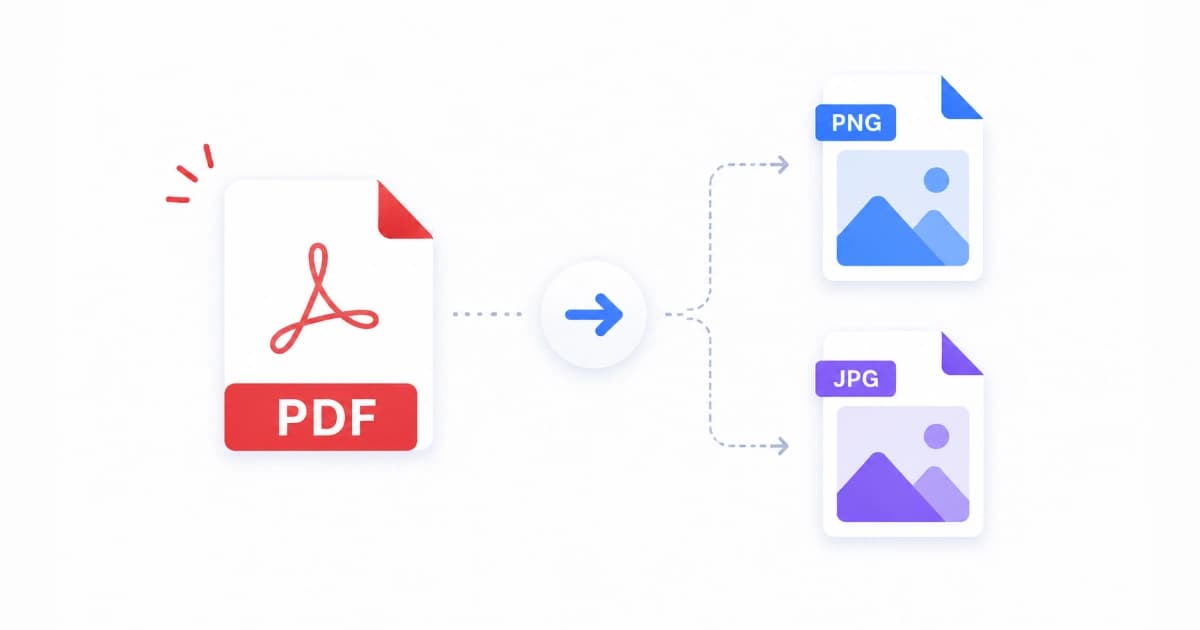
You need page 3 of a report as a PNG for Slack, or every slide of a deck as JPGs for a blog recap. PDF to image conversion turns each page into a standard picture file. Our PDF to Image tool renders pages in your browser - nothing uploads, nothing waits in a server queue.
When PDF to image beats other options
| Goal | Best approach |
|---|---|
| Share one page in chat | PDF to PNG/JPG |
| Email a full document | Keep PDF or compress with Compress PDF |
| Edit text in Word | Use a proper PDF editor or export from source app |
| Pull logos from a PDF | Embedded image extraction (different workflow) |
| Archive many pages | PDF to images + ZIP, or keep original PDF |
Rendering pages is ideal when the layout must look exactly like the PDF.
Step-by-step: PDF to Image
- Open PDF to Image.
- Upload your PDF.
- Select PNG (sharp UI/text) or JPG (smaller photos).
- Adjust quality or scale if options are shown.
- Download images (single pages or a bundle, depending on the tool UI).
Work on a desktop for large PDFs. Hundreds of pages can use significant memory because rendering is local.
Choosing PNG vs JPG
Choose PNG when:
- Slides and charts with flat colors.
- Screenshots of forms or tables.
- You need lossless edges for documentation.
Choose JPG when:
- Scanned photo pages.
- Email size limits matter.
- Social platforms will recompress anyway.
For mixed PDFs, PNG is the safer default. Compress after with Image Compressor if files are large.
Quality and readability
Rendered pages depend on resolution. Low scale makes small text fuzzy. If previews look soft, increase output scale before downloading. For web, 150-200 DPI equivalent is often enough. For print, go higher.
Test one page before batch-exporting a 200-page file.
Privacy for sensitive PDFs
Contracts, payroll, medical, and legal PDFs should not go to random cloud converters. Browser-based tools that state local processing keep bytes on your machine. Convert Freely follows that model for PDF to Image and Split PDF.
Related workflows
- One page only: Split PDF then convert the smaller file.
- Images back to PDF: Image to PDF after editing in an image editor.
- PDF too large to email: Compress PDF before or instead of converting.
Troubleshooting
- Blank pages: PDF may be encrypted. Unlock in your desktop reader, save a copy, try again.
- Wrong colors: Rare profile issues; re-export PDF from source app.
- Browser tab freezes: Very large page count; split the PDF into chunks first.
- Huge PNG files: Switch to JPG or compress outputs.
Conclusion
PDF to PNG or JPG is the fast way to share exact page visuals anywhere images are accepted. Use PDF to Image for local, free conversion. More PDF guides are on PDF Tools, including split and compress tutorials.
Frequently asked questions
- Is PDF to image conversion the same as extracting embedded images?
- No. This process renders each page as a full picture (like a screenshot). Extracting embedded images pulls out assets stored inside the PDF. Use page rendering when you need the whole page including text and layout.
- Which is better, PNG or JPG for PDF pages?
- PNG for slides, diagrams, and text-heavy pages (sharper edges). JPG for photo-heavy pages and smaller file sizes. When unsure, try PNG for documents and JPG for scanned photos.
- Are my PDFs uploaded to your servers?
- Not with Convert Freely. PDF to Image runs in your browser. Your file stays local.
- Can I convert only one page?
- Yes. Split the page you need with Split PDF first, or export all pages and keep the file you want.
- Will text stay readable?
- At default resolution, body text stays sharp for web and email. For print, export at higher scale if your tool offers a quality or DPI setting.