Why Browser-Based File Tools Are Faster and Safer
Why running file tools in the browser beats desktop installs and cloud uploads - for speed, privacy, and reliability. With examples from real workflows.
May 27, 2026 · 5 min read · Guides & Tips
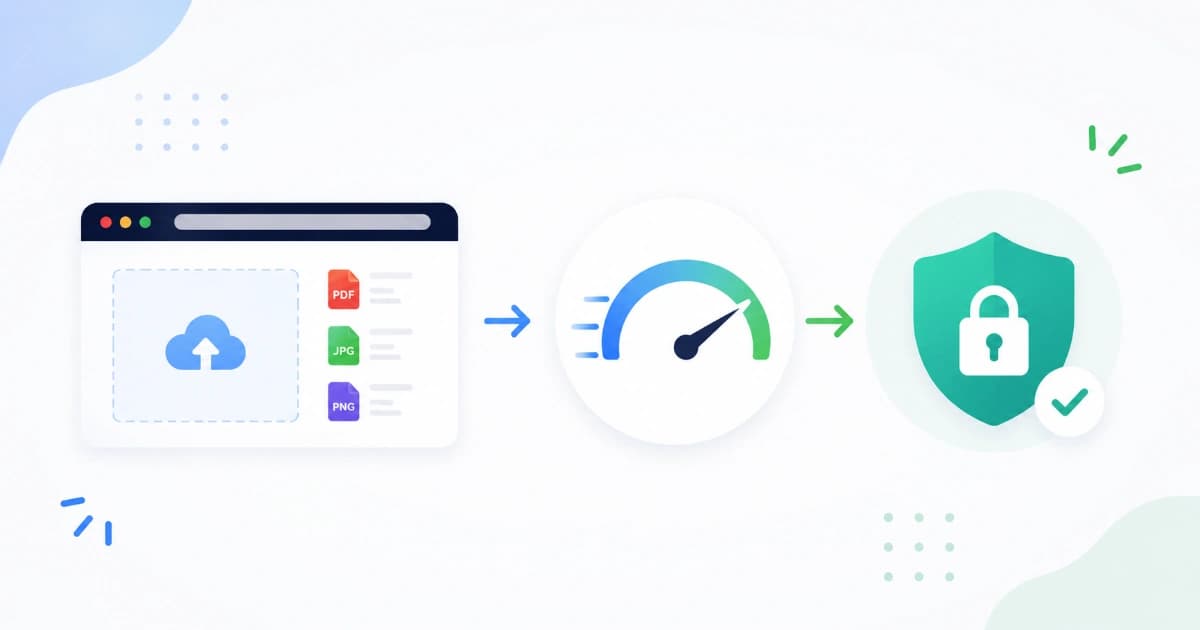
Five years ago, "online file converter" almost always meant uploading your file to a server. Today, the best tools run entirely in your browser - faster for everyday work, strongly private by default, and free of installs or signups. This post explains why browser-based file tools are the better default for most people, with concrete examples from real workflows.
The three architectures
Let's frame the landscape:
| Type | Where your file is processed | Speed for small files | Privacy |
|---|---|---|---|
| Desktop app | Your device | Fast | Strong (no internet) |
| Cloud / server-based | Operator's server | Network-bound | Depends on operator |
| Browser-based | Your browser | Fast | Strong (file never leaves) |
For most tasks, browser-based combines the privacy of a desktop app with the convenience of a web tool - no install, no upload.
Why browser-based is fast
Three reasons it usually beats cloud tools for everyday files:
1. Zero upload time
Uploading a 50 MB PDF to a server takes 5-30 seconds on a typical home connection. With browser tools, that step is zero seconds - the file is already on your device.
2. No queue
Cloud converters queue your job behind other users. On a free tier, this can be 10-60 seconds during busy periods. Browser tools have no queue - you're using your own CPU.
3. WebAssembly is fast
WebAssembly (WASM) lets browsers run code at near-native speed. Modern image and PDF libraries compiled to WASM are typically 70-95% as fast as their desktop equivalents on the same machine. For most everyday jobs that's plenty.
A real example: compressing a 12 MB scanned PDF.
- Upload to a typical cloud tool: ~6 seconds upload + ~8 seconds processing + 2 seconds download = ~16 seconds total.
- Convert Freely's Compress PDF: ~4 seconds total. No upload step.
Why browser-based is safer
Privacy is the bigger reason to care, not just speed.
- The file never leaves your device. Even the operator (us) literally can't see it.
- There's nothing to leak. No storage = no breach. No logs = no accidental exposure.
- You can verify it. Open DevTools → Network → upload a file. If nothing uploads, it's local.
Compare to cloud tools, where you must trust:
- The operator's policy on retention.
- The operator's security practices.
- The operator's business model - what are they really doing with your file?
With browser tools, none of that matters because nothing is shared.
Real workflows
Photographer cleaning up event photos
- 200 HEIC photos from an iPhone shoot.
- Convert to JPG with HEIC to JPG - done in ~90 seconds in the browser.
- Bulk compress with Image Compressor.
- Bulk rename with Bulk File Rename.
- No uploads, no signups. Suitable for client work where confidentiality matters.
HR submitting documents
- 8 PDF scans of a candidate's documents.
- Merge with Merge PDF, compress with Compress PDF.
- Single 4 MB attachment emailed to HRBP.
- Nothing leaves the HR laptop - important for GDPR / data handling.
Developer formatting an API response
- Production incident, customer log containing tokens.
- Paste into JSON Formatter in seconds.
- Spot the malformed field, share screenshot, fix bug.
- Tokens never touch a third-party server.
When desktop or cloud is still better
Browser-based has limits. Use a native app or a trusted cloud service for:
- Video transcoding beyond very short clips.
- OCR on hundreds of pages.
- Specialised file formats (GIS shapefiles, niche CAD formats).
- Files larger than your device's free RAM. Browsers tap out around 1-2 GB on most laptops.
For those, look for trusted, paid tools with a clear data policy.
When browser-based is the obvious choice
Use a browser-based tool when:
- The file is personal or sensitive (ID, contract, medical, financial).
- You're on a public or work computer and don't want to install anything.
- The task is one-off and not worth installing software.
- You're on mobile and want a real conversion, not a watered-down app.
- You care about speed for files under a few hundred MB.
That covers the majority of conversion, merging, splitting, formatting, and minifying tasks.
How to spot a true browser-based tool
Some tools claim to be "secure" while still uploading your file. Verify with this 60-second test:
- Open the tool in Chrome / Firefox / Safari.
- Open DevTools (F12 or Cmd+Opt+I) → Network tab.
- Clear the network log.
- Drop in a small test file and run the conversion.
- Watch the requests. A true browser-based tool will show only static asset requests (JS, CSS, fonts). It will not show a POST with your file in the payload.
If you see your file in the request body, it was uploaded. Decide whether you trust that.
Browser-based isn't magic - what to look out for
- First load is heavier - the page has to download the conversion library (often a few MB).
- Very low-end devices may struggle with large files.
- Some browsers have stricter privacy modes that disable parts of WebAssembly. Use Chrome, Firefox, Edge, or modern Safari for best results.
- Memory limits - a single tab can usually use 1-2 GB on a laptop. Don't try to convert a 5 GB video.
For most jobs these don't matter. For edge cases, fall back to a desktop app.
Wrap-up
For 90% of file tasks, browser-based tools are the right default - faster than uploading, more private by design, and free without ads or trackers. Try them out:
- Image Converter, Image Compressor, HEIC to JPG
- Merge PDF, Compress PDF, Image to PDF
- JSON Formatter, Base64 Encode / Decode
Related: Online file conversion privacy guide.
Frequently asked questions
- Can browser-based tools really replace desktop apps?
- For most everyday tasks - image conversion, PDF merging, JSON formatting - yes, completely. For very heavy work (video transcoding, OCR on hundreds of pages, GIS data) desktop or cloud tools are still better. Browsers cover the daily 90%.
- Are browser tools slower than installed apps?
- For small to medium files (under ~200 MB), browser tools are usually as fast or faster because there's no upload, no signup, no install. For huge files, a native app or server can sometimes pull ahead because it has more memory available.
- Do browser tools work offline?
- Yes, once the page is loaded. Modern web apps cache their code via service workers, so you can convert an image in airplane mode after the first visit.
- What's the difference between 'browser-based' and 'web-based'?
- We use 'browser-based' to mean processing happens in your browser - your files never reach a server. 'Web-based' is a fuzzier term that often means the opposite: you upload files to a remote server. Always check which kind a tool is.
- Why don't more tools work this way?
- WebAssembly and modern browser APIs made browser-side file processing practical only in the last 5-6 years. Older online tools were built when servers had to do the work. Many haven't updated their architecture even though the cost and privacy advantages are obvious now.