How to Create a QR Code With Logo (Free, No Signup)
Create branded QR codes with your logo, brand colors, and a custom 'Scan Me' frame in seconds. Wi-Fi, vCard, URL - free, browser-based, downloads PNG or SVG.
May 23, 2026 · 7 min read · Guides & Tips
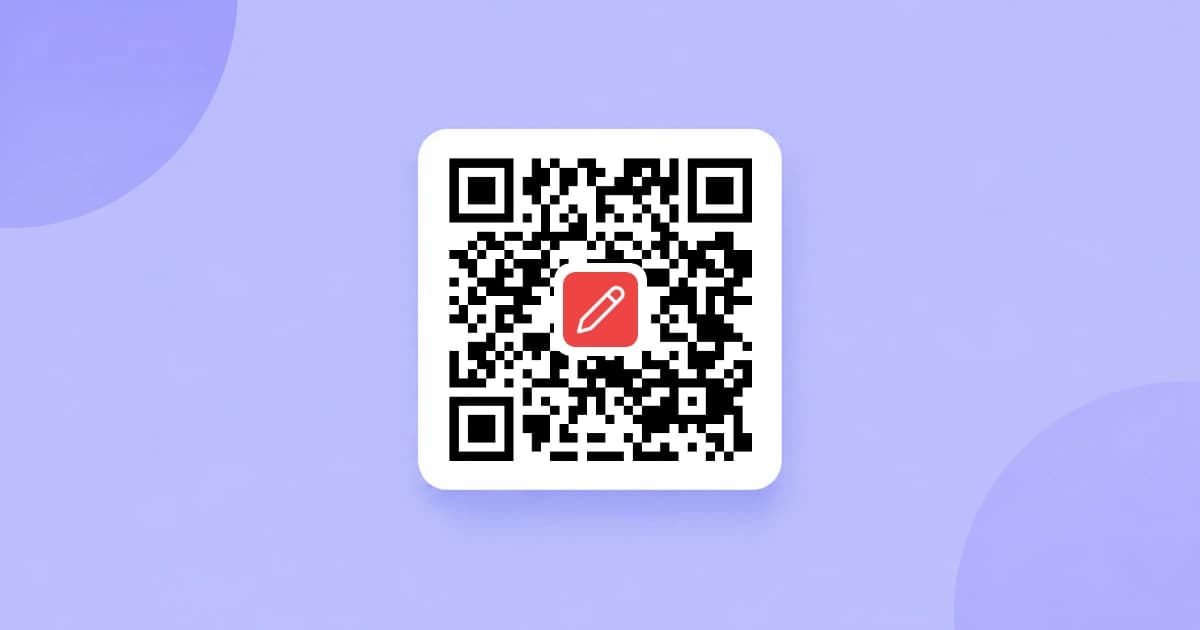
A QR code with your brand colors and logo is dramatically more memorable than a black-and-white square - and in 2026 you can build one for free, with no signup, in under a minute. This guide walks through the entire process using our free QR Code Generator.
TL;DR - the 5-step recipe
- Open the QR Code Generator.
- Pick a content type: URL, plain text, Wi-Fi, vCard, Email, or SMS.
- Fill in the fields (we build the correct QR payload for you).
- Choose a color preset or paste your brand hex, upload a logo for the center, optionally add a Scan Me caption frame.
- Download as PNG (2x resolution, ready for print) or SVG (vector).
The whole thing happens in your browser. Nothing - not your URL, not your Wi-Fi password, not your logo - is ever uploaded.
Six QR content types and what they're for
Most QR generators only handle URLs. Picking the right content type matters because each one tells the scanning phone what to do with the data: open a webpage, join Wi-Fi, save a contact, etc.
| Content type | Phone behavior on scan | Use it for |
|---|---|---|
| URL | Opens the link in the default browser | Business cards, posters, packaging, restaurant menus |
| Text | Shows the text as a snippet | Promo codes, instructions, dietary notes |
| Wi-Fi | Prompts to join the network | Cafés, AirBnBs, conference rooms, home guests |
| Opens email composer prefilled | Customer support shortcuts, sales contacts | |
| SMS | Opens SMS composer prefilled | Lead capture, contest entries, opt-in messages |
| vCard | Saves contact info to phone book | Networking, conference badges, business cards |
A Wi-Fi QR code with WIFI:T:WPA;S:CafeWifi;P:welcome123;; is not the same as a URL containing the password as text - the first auto-joins, the second just displays a string. Picking the right type is what makes the QR feel "magical" to the person scanning.
Adding a logo without breaking the scan
The big myth: "Adding a logo will break my QR code." The truth: it only breaks if you do it wrong.
QR codes have built-in error correction with four levels:
| Level | Damage tolerance | Use case |
|---|---|---|
| L | 7% | Smallest codes, perfect printing |
| M (default) | 15% | Most use cases |
| Q | 25% | Outdoor printing, weather exposure |
| H | 30% | Codes with logos, stickers, or worn surfaces |
Our generator automatically raises the error correction to Level H the moment you upload a logo. That gives the scanner enough redundancy to reconstruct the QR pattern even with your logo covering ~22% of it. So you get the best of both worlds: branded look, 100% scan rate.
Logo tips that actually matter
- Use a square PNG or SVG with a transparent background.
- Aim for a high-resolution logo (256×256 or larger). It will be downsampled to ~22% of the QR width.
- Use one strong, contrasting color. Multi-color logos can look muddy at small sizes.
- Test the result by scanning with two different phones before printing in bulk.
If you don't have a logo yet, the Favicon Generator is a quick way to turn any image into a clean square icon you can drop into the QR generator.
Color presets vs custom hex
We ship six tested color presets:
- Classic (black on white) - safest, best scan reliability.
- Brand Red, Ocean, Forest, Royal - solid colors with high contrast against white.
- Slate - dark text on light gray for premium feel.
All six are tested at 200×200 and 800×800 to confirm they still scan reliably with cheap and high-end phone cameras.
You can also paste any hex codes you want. The only hard rule: the foreground (dark) color must have enough contrast against the background. If the QR looks "low contrast," scanners will struggle. Stick to dark-on-light, not light-on-dark.
Frame styles - and which one to use
| Frame | When to use |
|---|---|
| None | Embedding in a designed layout (you control the layout in Figma / Canva) |
| Rounded | Standalone use on a flat surface (business card back, sticker, packaging) |
| Caption | Posters, table tents, flyers - the "Scan Me" call to action 3-4x scan rates in tests |
The caption is fully editable - swap "SCAN ME" for "FOLLOW US", "MENU", "WI-FI", or your campaign tagline.
PNG vs SVG - which to download
- PNG is the default. We export at 2x your preview size (up to 1600 px) so it stays crisp when printed on posters or packaging.
- SVG is vector - infinite resolution. Ideal if you're handing the QR to a designer who wants to drop it into Figma, Illustrator, or a print-shop file. Note: the SVG export keeps the QR pattern but drops the logo and caption frame (since SVG is text-based and we cannot embed arbitrary raster logos cleanly).
For most marketing use, download both. PNG for the rough draft, SVG as a future-proof master.
Use-case recipes
Café / restaurant Wi-Fi QR
- Content type: Wi-Fi.
- Fill in SSID, password, set encryption to WPA / WPA2.
- Color preset: Classic or your brand color.
- Logo: your café logo.
- Frame: Caption with text WI-FI.
- Download PNG, print at 4×4" on the back of the menu.
Cost vs. a paid QR service: $0 vs $7-15/month.
Networking event vCard
- Content type: vCard.
- Fill in name, phone, email, organization, website.
- Logo: your headshot or company mark.
- Frame: Rounded for clean badges.
- Download SVG, drop into your badge design in Figma.
Scanning saves the contact to the phone in one tap - way faster than typing.
Restaurant menu QR
- Content type: URL pointing to your menu PDF or page.
- Color preset: Brand Red or your house color.
- Logo: restaurant logo.
- Frame: Caption with text MENU.
- PNG at 800px, printed on every table.
Smart packaging
- Content type: URL with a tracking parameter you can change later.
- Set color to match your packaging.
- Logo: brand mark.
- Frame: None (your packaging design provides the visual context).
- Download SVG, hand to your printer.
Common pitfalls
- The QR scans on iPhone but not on Android (or vice versa). Usually a contrast or print size issue. Bump the contrast and reprint at minimum 2×2 cm.
- The QR scans but the destination page is broken on phones. Test the actual URL on a mobile browser before printing 10,000 stickers. Shorter, mobile-friendly URLs are always better.
- The Wi-Fi QR does not auto-connect. Older Android versions (≤9) and some MDM-locked phones need you to scan with a third-party app. Caption-frame your code with "Scan with camera app to join Wi-Fi" for older audiences.
- The logo blurs. Use SVG or a high-res PNG. Avoid logos with thin lines that disappear at small sizes.
Privacy reminder
Other free QR generators upload your URL and (if relevant) your Wi-Fi password to their server before generating the image. We don't. The whole tool - QR generation, logo compositing, frame rendering, PNG / SVG export - runs in your browser. Your data, your logo, your Wi-Fi password: they never touch our servers.
Next step
Spin up your first branded QR right now: QR Code Generator. It's free, unlimited, watermark-free, and your QR codes work forever - no tracking, no expiry, no subscription.
Need a clean logo first? Try the Favicon Generator to turn any image into a square icon ready for the center of your QR.
Frequently asked questions
- Can a QR code really have a logo in the middle and still scan?
- Yes - as long as the QR code uses high error correction. Our generator automatically bumps the error correction to Level H (30% damage tolerance) the moment you add a logo, so the code stays scannable on every phone.
- What is the maximum logo size I should use?
- Keep your logo to about 22% of the QR code's width or smaller. Our generator does this automatically and wraps a clean rounded backdrop around the logo so it does not interfere with the QR pattern.
- Are dynamic QR codes better than static ones?
- Dynamic QR codes (which add a redirect server you can update) are useful if you need to change the destination after printing. They cost money, can be deactivated by the provider, and add tracking. Static QR codes - what we generate - work forever, never expire, and have no tracking.
- Can I create a Wi-Fi QR code that auto-connects guests?
- Yes. Pick 'Wi-Fi' as the content type, enter your SSID and password, and choose your encryption (WPA / WPA2 / WEP / open). Modern iPhones (iOS 11+) and Android phones (10+) connect automatically when scanning the code.
- What is the difference between PNG and SVG download?
- PNG is a raster image - perfect for digital, social, and most print. We export PNG at 2x your preview size for crisp printing up to 1600px. SVG is vector - infinitely scalable, ideal for designers who need to drop the QR into Figma or Illustrator. Note: SVG export does not embed the logo or frame.
- Are my QR contents (URLs, Wi-Fi passwords) sent to your server?
- No. The whole QR generator runs in your browser - including the canvas that composites your logo and frame. Your URLs, contact details, and Wi-Fi passwords never reach our servers.