How to Resize Images for the Web Without Losing Quality
Resize photos to exact pixels for blogs, shops, and social. Free browser tool, no upload. Keep sharpness with the right dimensions and format.
May 28, 2026 · 3 min read · Image Tools
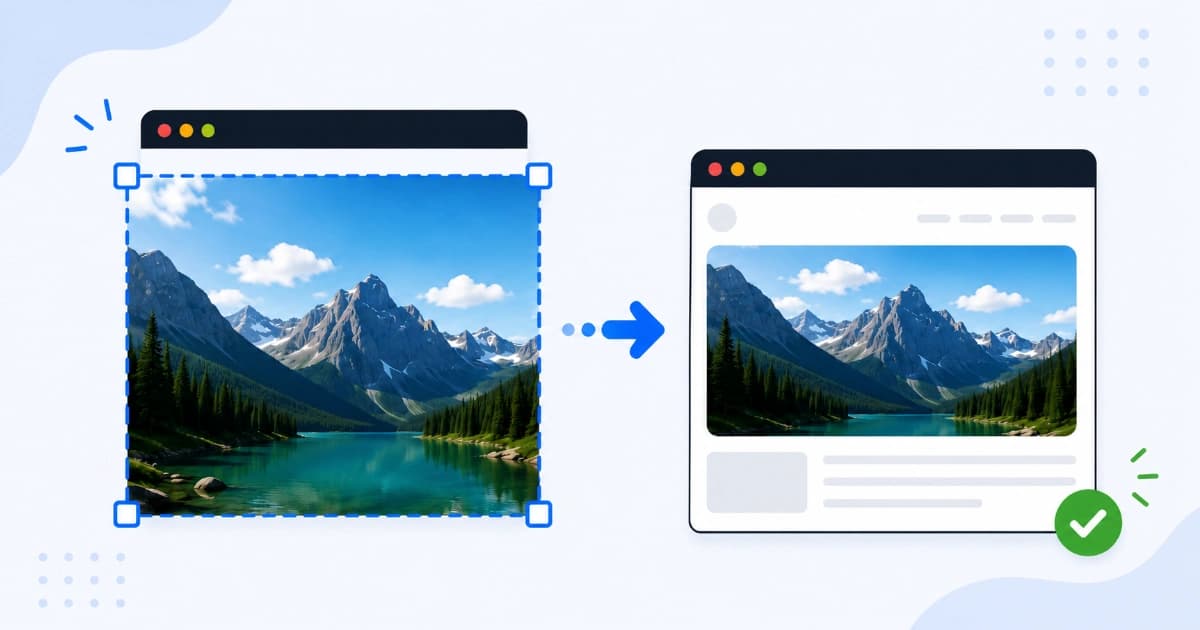
Serving a 4000 px wide photo in a 800 px blog column wastes bandwidth and slows Core Web Vitals. Resizing for the web means matching file dimensions to how the image actually appears. Our free Image Resizer does this in your browser with no upload and no signup.
Why resizing matters more than compression alone
Compression reduces bytes per pixel. Resizing reduces pixel count. Dropping from 4000 px to 1200 px width removes roughly 88% of the pixels before compression runs. That is often a bigger win than tweaking JPG quality from 90 to 75.
| Step | Typical savings |
|---|---|
| Resize to display width | 50-90% |
| Convert to WEBP | 25-35% extra |
| Compress at quality 80 | 20-40% extra |
Do all three for product photos, heroes, and galleries.
Step 1 - Know your target dimensions
Check where the image will appear:
- WordPress / blog hero: 1200 px wide (height follows ratio).
- Shopify product main: often 2048 px max, but 1200 px is enough for most themes.
- Open Graph / social preview: 1200 x 630 px (crop if needed).
- Email newsletters: 600 px wide max for compatibility.
When in doubt, open your site, inspect the image container in dev tools, and note the rendered width. Add 1.5x only if you support retina displays (e.g. 800 px slot -> 1200 px file).
Step 2 - Resize with aspect ratio locked
- Open Image Resizer.
- Upload your image.
- Enter width OR height (the other dimension updates automatically if aspect ratio is locked).
- Preview and download.
Avoid stretching logos or faces. If the composition is wrong after scaling, switch to Image Cropper to reframe, then resize.
Step 3 - Pick format and compress
After resizing:
- Photos: JPG or WEBP at quality 80 via Image Compressor.
- Graphics with transparency: PNG or WEBP.
- Need a different format? Use Image Converter first.
Strip EXIF metadata when compressing. GPS and camera tags add size without helping visitors.
Common mistakes
- Only compressing the original giant file. Resize first.
- Upscaling small screenshots. Export at native size instead.
- One size for all breakpoints. Use
srcsetwith 480, 800, and 1200 px variants when your CMS allows it. - Ignoring aspect ratio. Distorted product photos reduce trust.
Retina (2x) images explained
If your layout shows an image at 400 px wide, a 800 px file looks crisp on retina phones. You do not need 4000 px. Rule of thumb: file width = 1.5x to 2x the CSS width, not 10x.
When to crop instead of resize
Resize changes scale. Crop changes framing. Use crop when you need:
- Square Instagram posts from landscape photos.
- 16:9 YouTube thumbnails.
- Removing empty margins on scans.
Then resize the cropped result to the final pixel size.
Conclusion
Resize to real display dimensions, keep aspect ratio, export WEBP or JPG, and compress. That workflow keeps pages fast without visible quality loss. Try Image Resizer now - free, private, and runs entirely in your browser. More image guides live on Image Tools and in our compression tutorial.
Frequently asked questions
- Does resizing an image reduce quality?
- Shrinking an image (making it smaller) usually looks sharp because extra pixels are averaged down. Enlarging a small image past its original size will look soft or blocky because new pixels are guessed. Resize down for the web; avoid upscaling beyond 100% of the source.
- What size should blog images be?
- A common hero width is 1200 px. In-content images often fit 800 px wide. Thumbnails can be 400 px or less. Match the CSS max-width of your theme so you are not serving 4000 px files into 800 px slots.
- Is online image resizing safe?
- Safe when processing happens in your browser. Convert Freely's Image Resizer never uploads your file. Avoid tools that send photos to unknown servers for sensitive work.
- Should I resize before or after compressing?
- Resize first, then compress. Fewer pixels means a smaller file at the same visual quality. Compressing a huge original and then resizing wastes effort.
- Can I resize without cropping?
- Yes. Use percentage or pixel dimensions with aspect ratio locked. Use the Image Cropper only when you need to change framing, not just scale.