How to Crop Images for Social Media (Free, Exact Ratios)
Crop photos for Instagram, LinkedIn, YouTube, and stories with 1:1, 16:9, and 9:16 presets. Free online cropper, no upload, private.
May 29, 2026 · 3 min read · Image Tools
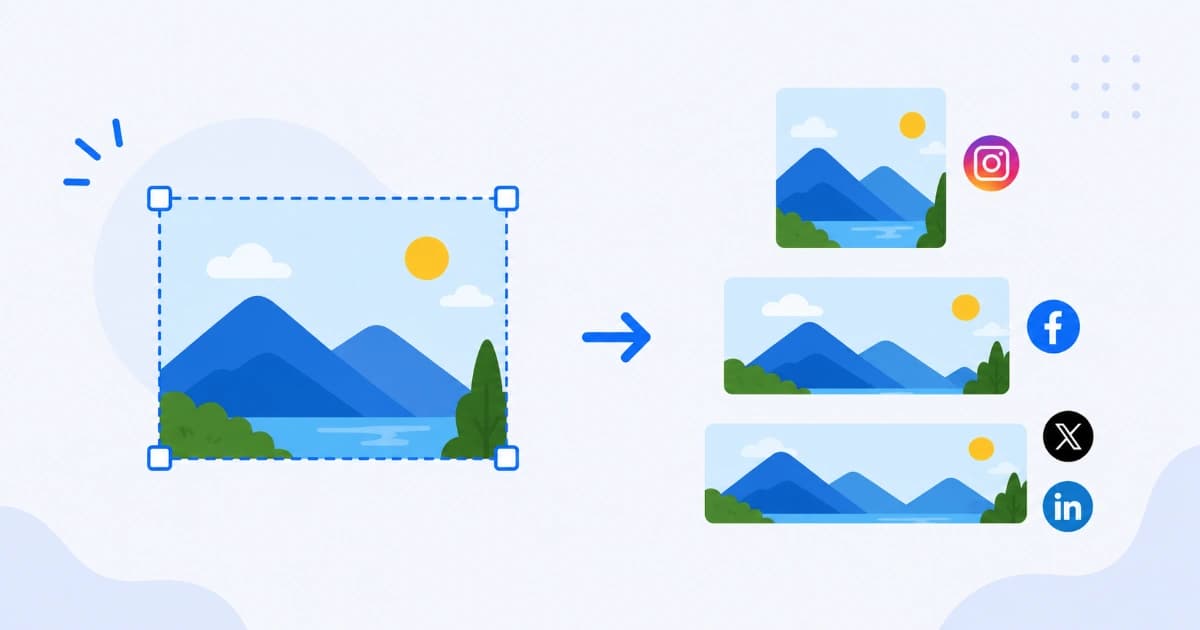
Every platform crops your upload if the ratio is wrong. You lose faces, text, or product edges. Cropping before you post puts you in control. Use our free Image Cropper with presets for square, landscape, and story formats - no app install, no file upload to a server.
Platform cheat sheet
| Platform | Common ratio | Suggested pixels |
|---|---|---|
| Instagram feed (square) | 1:1 | 1080 x 1080 |
| Instagram portrait feed | 4:5 | 1080 x 1350 |
| Instagram / TikTok story | 9:16 | 1080 x 1920 |
| Facebook link preview | ~1.91:1 | 1200 x 630 |
| LinkedIn post image | 1.91:1 or 1:1 | 1200 x 627 or 1080 x 1080 |
| YouTube thumbnail | 16:9 | 1280 x 720 |
| X (Twitter) post | 16:9 or 1:1 | 1200 x 675 or 1080 x 1080 |
Ratios matter more than exact pixels. Platforms resize anyway, but wrong ratio means automatic center crops you did not choose.
Step-by-step with Image Cropper
- Open Image Cropper.
- Upload JPG, PNG, or WEBP.
- Select a preset: 1:1, 16:9, 9:16, 4:3, or free crop.
- Drag the crop area so the subject sits in the frame. Leave margin for text on thumbnails.
- Choose output format and download.
Processing is local. Client photos and unreleased creative stay private.
Composition tips that survive every crop
- Center important content for square crops from landscape originals.
- Leave headroom on story crops so UI overlays do not cover faces.
- Avoid edge text on YouTube thumbnails; mobile may clip sides slightly.
- Use high-resolution sources so the cropped region still has enough pixels.
If the file is small after cropping, avoid upscaling. Shoot or export a larger source image instead.
After cropping: resize and compress
Cropping fixes framing. Two more steps polish file size:
- Image Resizer - hit exact pixel targets (e.g. 1280 x 720 for YouTube).
- Image Compressor - WEBP or JPG at quality 80 for fast loading.
For feed posts, under 500 KB per image is a practical goal.
Crop vs resize: quick difference
- Crop: cuts the canvas (changes what is in the picture).
- Resize: scales the whole image (same framing, different size).
Social workflows almost always need crop first, then resize.
Batch workflows
Posting many variants? Crop the hero asset once per ratio, save masters, then duplicate for copy changes. Pair with Bulk File Rename if you export dozens of files from a shoot.
Conclusion
Pick the ratio, crop intentionally, resize to platform pixels, compress. You will stop fighting automatic platform crops. Start with Image Cropper - free and browser-based. Browse more on Image Tools or read how to resize for the web.
Frequently asked questions
- What crop ratio does Instagram use?
- Feed posts are often 1:1 (square) or 4:5 (portrait). Stories and Reels use 9:16 (1080x1920). Profile photos are circular but upload as square.
- What is the best size for a YouTube thumbnail?
- 1280 x 720 pixels (16:9). Keep important text and faces inside the center safe zone so nothing is clipped on mobile.
- Does cropping reduce image quality?
- Cropping removes pixels outside the frame. What remains can be equally sharp. Quality loss only appears if you crop a tiny area from a huge image and then stretch it.
- Can I crop without uploading to a server?
- Yes. Convert Freely's Image Cropper uses canvas in your browser. Your photo stays on your device.
- Should I crop or resize first?
- Crop first to get the right framing and ratio, then resize to the platform's recommended pixel dimensions if needed.