How to Format JSON Online (Free Validator & Beautifier)
Format, validate, and minify JSON in your browser. Spot syntax errors, fix trailing commas, and prettify nested objects. Free, no signup.
May 20, 2026 · 5 min read · Developer Tools
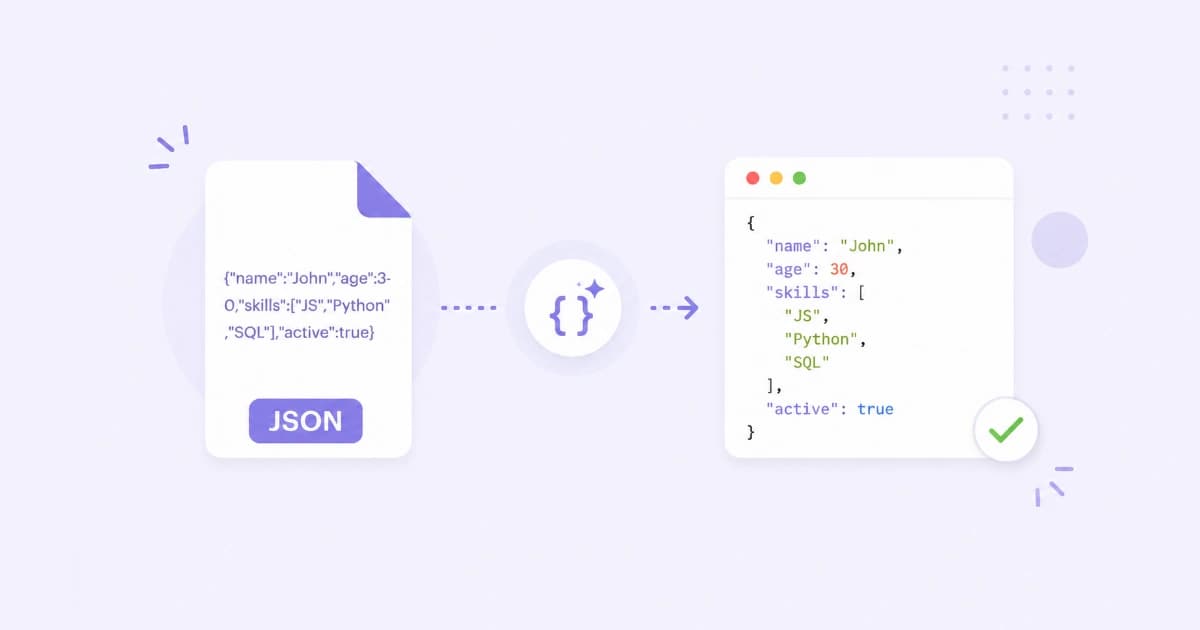
JSON is the wire format of the modern internet, which means developers stare at it many times a day. A good JSON formatter turns a single-line API response into a tree you can actually read, catches syntax errors before they crash your code, and minifies your payload before you ship. This guide covers how to use JSON Formatter, the common bugs it surfaces, and quick tips for trimming JSON size.
Format JSON in 3 steps
- Open JSON Formatter.
- Paste your JSON into the input box.
- Click Format (or Minify to do the reverse).
The output appears with proper indentation, syntax-coloured keys and values, and line numbers. If your JSON is invalid, you'll get a precise error like:
Unexpected token } at line 5, column 12
That single line saves hours of squinting at production logs.
Why your JSON is invalid (top 5 reasons)
1. Trailing commas
JSON does not allow trailing commas. JavaScript does. This causes constant pain.
// Invalid
{
  "name": "Alex",
  "role": "admin",
}

// Valid
{
  "name": "Alex",
  "role": "admin"
}
2. Single quotes
JSON strings must use double quotes. Single quotes are a JavaScript habit, not a JSON one.
// Invalid
{ 'name': 'Alex' }

// Valid
{ "name": "Alex" }
3. Unquoted keys
In JSON, every key must be a quoted string.
// Invalid
{ name: "Alex" }

// Valid
{ "name": "Alex" }
4. Comments
JSON does not support // or /* */ comments. If you've copied JSON from a config file with comments (JSON5 or JSONC), strip them before parsing.
5. NaN, Infinity, undefined
JSON has no representation for these - they fail parsing. Replace with null or a numeric placeholder.
Minify JSON for production
Pretty-printed JSON is great for humans. Minified JSON is what you send over the wire - typically 20-40% smaller because it strips spaces, tabs, and line breaks.
| Format | Size | Use case |
|---|---|---|
| Pretty-printed | Largest (≈ +30%) | Debugging, config files, docs |
| Minified | Smallest | API payloads, network transport |
| Compressed (gzip) | Smallest of all | Servers usually gzip both |
In JSON Formatter, click Minify to strip whitespace and copy a one-line version.
Validate JSON against a schema
For day-to-day validity (no typos, no syntax errors), the formatter is enough. For structural validation - "every user object must have a name and email" - you need JSON Schema validators like ajv. That's outside our tool's scope.
If you only want to confirm a field exists, paste the JSON into the formatter and visually scan the tree.
Convert JSON to CSV
Need to hand a JSON array off to a finance team or a spreadsheet?
- Open JSON to CSV Converter.
- Paste a JSON array of flat objects.
- Pick the delimiter (
,,;, or tab). - Download the CSV.
Works for typical API responses:
[
  { "name": "Alex", "role": "admin", "active": true },
  { "name": "Sam", "role": "user", "active": false }
]
Becomes:
name,role,active
Alex,admin,true
Sam,user,false
For nested JSON, flatten the structure first (e.g. promote user.email to user_email).
Convert API responses to readable JSON
Most APIs return minified JSON. Browser DevTools shows it as a tree, but if you want to copy and share with a teammate:
- Open the request → Response tab.
- Copy the raw body.
- Paste into JSON Formatter → Format.
- Copy the pretty version into Slack / a doc.
For very large responses, fold sections (most formatters add a fold control on every { and [).
Working with deeply nested JSON
When JSON is 6 levels deep, indentation alone isn't enough.
- Search/highlight - most formatters let you search for a key (Ctrl/Cmd+F).
- Collapse all - fold every object/array, then expand only what you need.
- JSONPath - for power users, query the structure with
$.users[?(@.active==true)].name.
Common formatting use cases
| Task | Tool |
|---|---|
| Pretty-print API response | JSON Formatter |
| Minify before sending in a header | JSON Formatter → Minify |
| Validate that a config file parses | JSON Formatter |
| Turn JSON array into CSV | JSON to CSV Converter |
| Decode a Base64-encoded JSON token | Base64 Encode / Decode → paste decoded text in JSON Formatter |
Privacy and JSON tools
Many API responses contain personally identifiable data, internal IDs, or tokens. Be careful which online formatter you use.
JSON Formatter parses and formats your JSON entirely in the browser - none of it reaches our servers. You can confirm this by opening DevTools → Network and watching no requests fire when you format.
Command-line alternatives
For very large files or scripted workflows:
# Pretty-print
cat data.json | jq .

# Minify
cat data.json | jq -c .

# Validate (exits 1 if invalid)
jq . data.json > /dev/null

# Extract specific fields
cat users.json | jq '.[] | {name, email}'
jq is brilliant for power users. For everyday tasks, browser is faster.
Conclusion
JSON looks simple until it's not. A good formatter is the fastest way to spot a stray comma or read a 200-line API response. JSON Formatter is free, browser-based, and never sends your data anywhere. For more developer utilities - minifiers, encoders, and converters - check out Developer Tools.
Frequently asked questions
- Is it safe to paste sensitive JSON into an online formatter?
- Only if the formatter runs in the browser. Convert Freely's JSON Formatter parses and formats locally - your JSON never reaches our servers. Avoid online formatters that don't state where parsing happens, especially for API responses with PII or tokens.
- Why is my JSON invalid?
- The most common causes are trailing commas, single quotes around strings or keys, missing quotes around keys, unescaped backslashes, and missing closing brackets. The formatter highlights the exact line and character where parsing failed.
- What's the difference between formatting and minifying JSON?
- Formatting adds whitespace and line breaks so the JSON is human-readable. Minifying strips all unnecessary whitespace to produce the smallest valid JSON. Use formatting while debugging, minifying for production payloads and API requests.
- Can I convert JSON to CSV?
- Yes - use JSON to CSV Converter. It works on flat arrays of objects and lets you choose the delimiter. For deeply nested JSON you'll need to flatten the structure first.
- How do I handle very large JSON files?
- Browser-based formatters can handle JSON up to roughly 50-100 MB before performance drops. For larger files, format on the command line with `jq . file.json > pretty.json` or split the file first.